
How to share a quote on social media using spf.io’s Social Sharing feature
Spf.io’s social sharing feature empowers your audience to share memorable quotes from your event in their preferred language, directly to their social media. They can share the quotes publicly on their feeds or privately via direct messages. This feature can increase your audience engagement and enable them to amplify your message to reach new people.
Note: this feature currently only supports sharing on Messages for Chrome on Mac.
Follow the steps below on how to use this feature:
How to upload custom background images to your session
There are two types of background images that you can use when you share a quote: a default spf.io background or a custom background. The spf.io background is available by default if you don’t want to customize the image. You can upload your own branded images as the custom background and set the font color of the quote to make it readable.
Here’s how you can set the custom background:
Step 1: Go to the session where you want to customize the background image and click Share quotes.
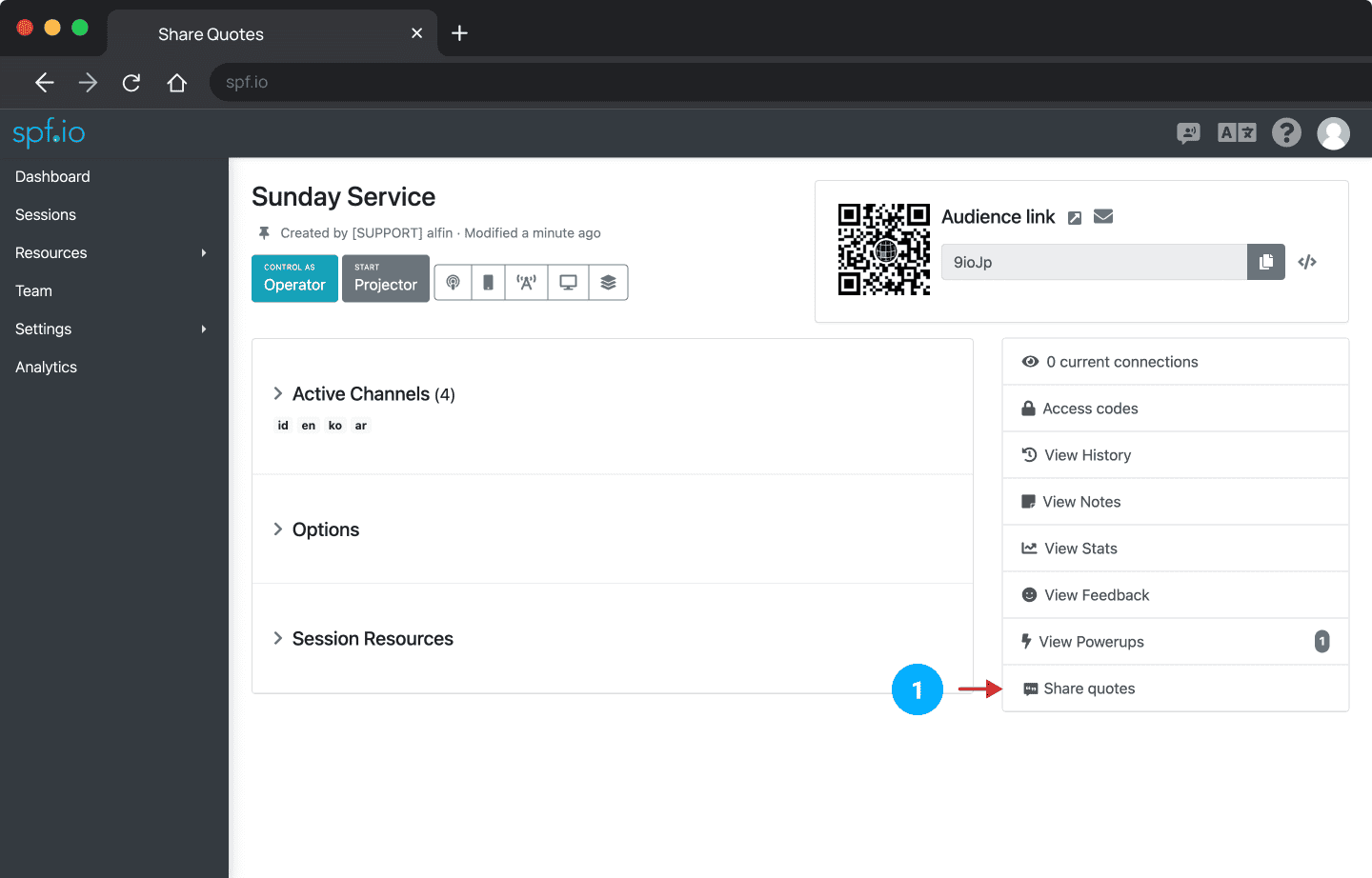
Step 2: The spf.io background is available by default if you don’t want to customize the image. But you can upload your own images as the custom background if you want to.

Step 3: Drop the file or click the box to upload your image. Select an image and then click Open.


Step 4: Crop your image if you need to and then click Submit.
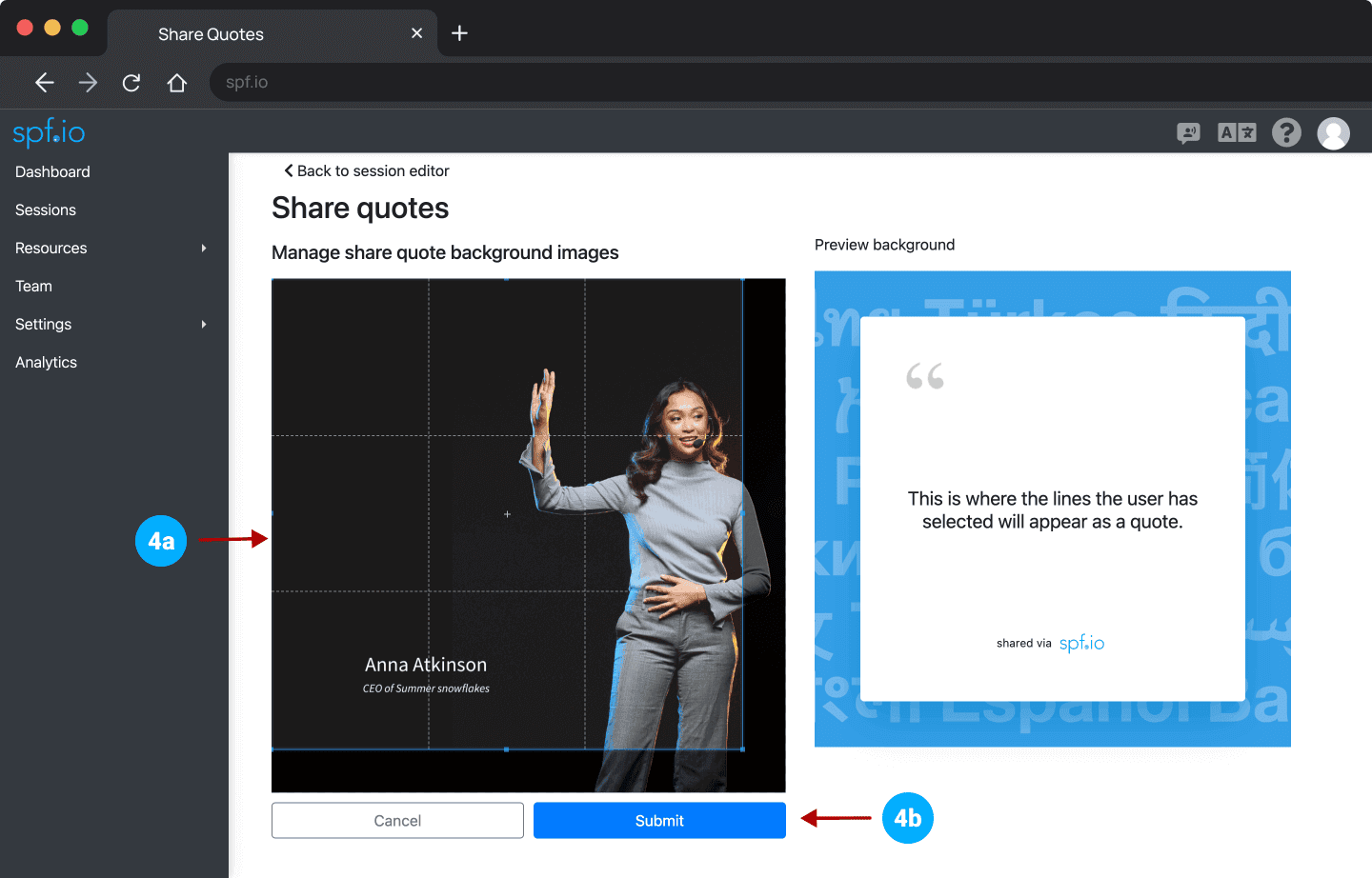
Step 5: Set the font color you want to use and then click Save.
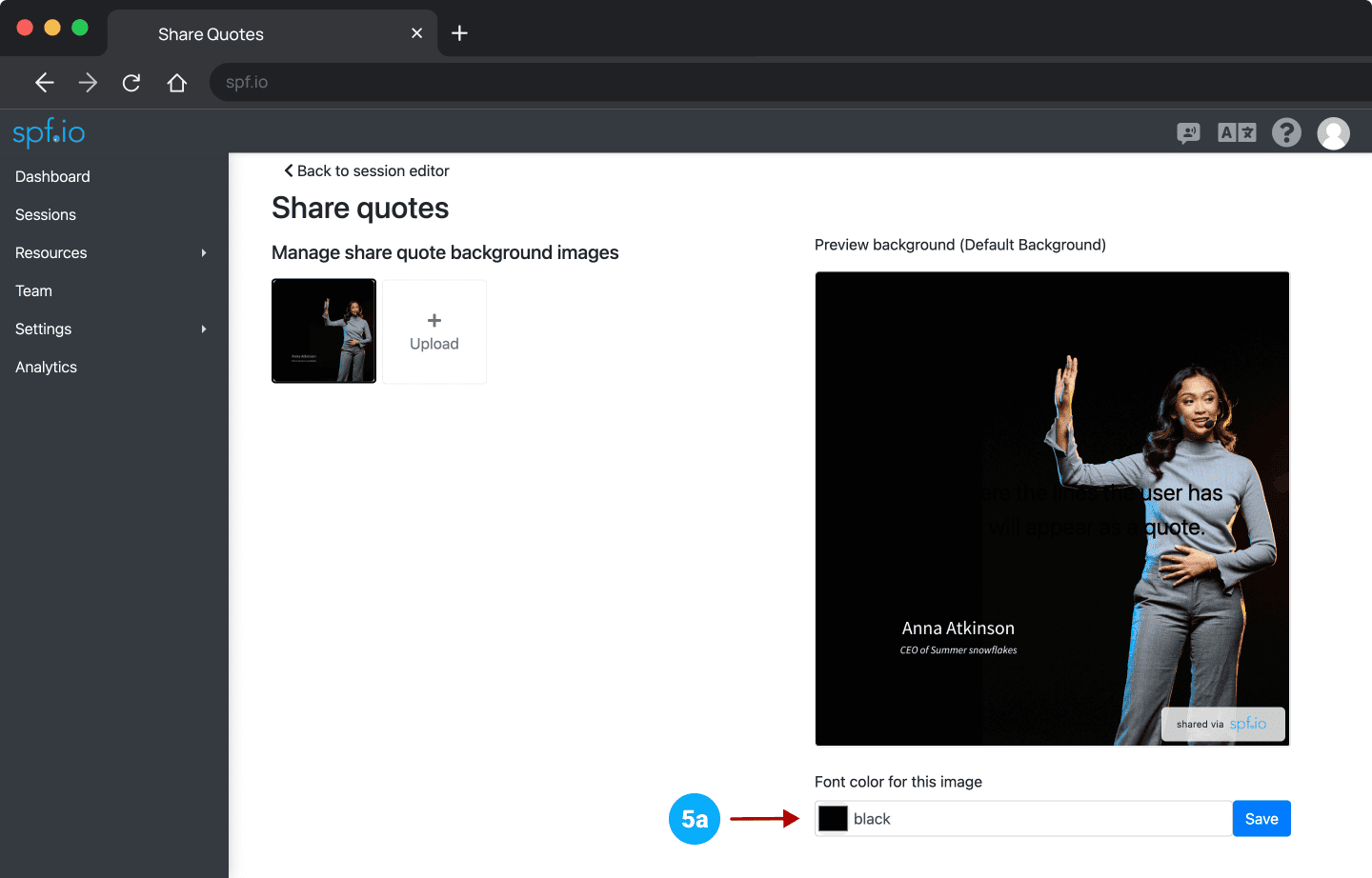

Click Upload to add more images to the session.
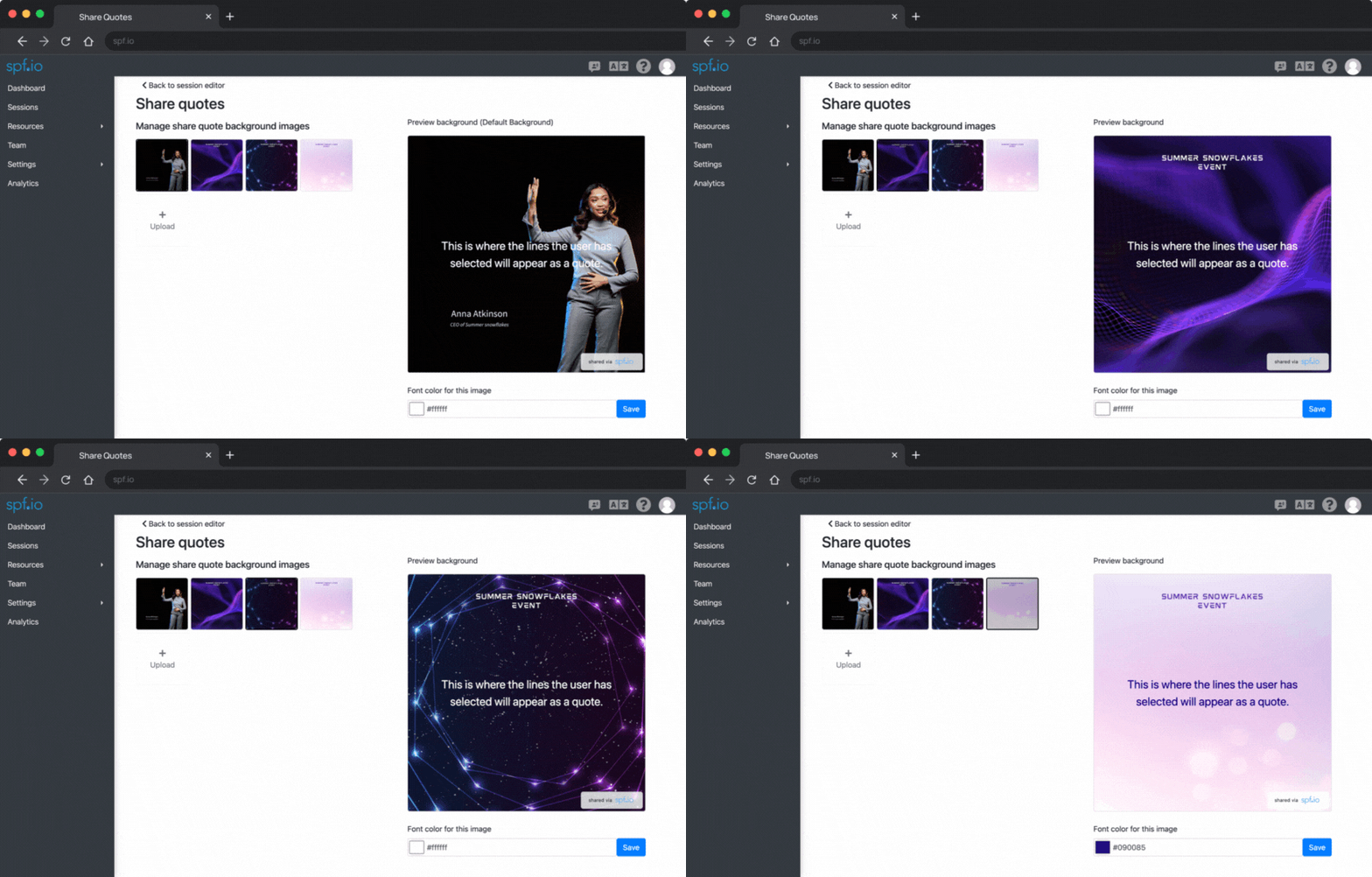
Note:
- Each background image you upload can be customized to have different font colors.
- You can only upload a maximum of 8 background images in one session. We recommend you upload square images (1:1 images).
- The images you upload in one session can automatically be used in new sessions you create afterward. If you want every session to have different background images, you’ll need to set the background images for each session.
How to share a quote in the audience view
If you find a compelling quote from the live transcription or translation in the audience view, you can directly share it on your social media platforms. You can share the quote as a text or an image.
Here’s how you can share the quote on your social media:
Step 1: Select the quote you want to share. Then, click the Share icon [ ].
].

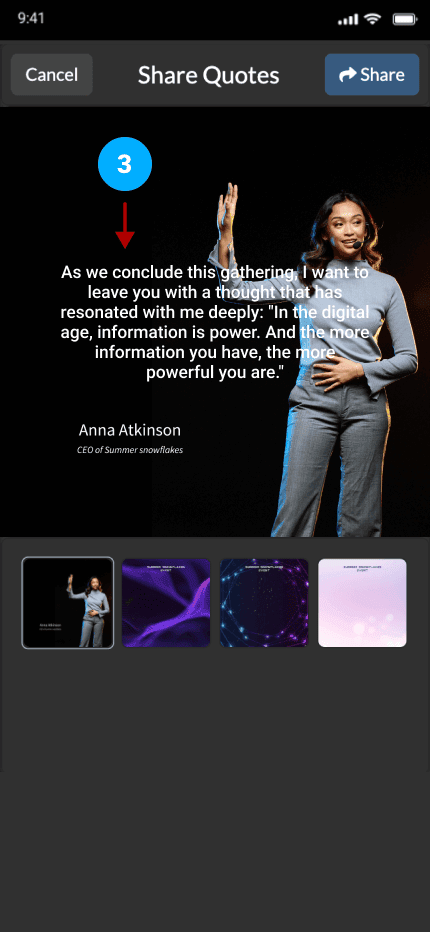
Step 2: Select whether you want to share the quote as a text or image. If you want to share it as an image, select Image.

Step 3: Click the text to edit or delete the quote. You can also resize the text and move its position.
Step 4: After you’re done with editing the quote, click the checkmark [✓] button.

Step 5: Click Share and select which platform or app you’d like to share it. You can either share it on your public feed or send it to your friends via direct message.


Tip💡: If you want to share a quote with multiple username tags and hashtags relevant to your event but the quote doesn’t appear (e.g. on Facebook), you can copy the text and paste it to the text field when you want to create a post. Ensure the usernames or profiles you tag are correct before posting it.