
How to generate an AI replica of your voice
Recording scripted audio content can be draining as you speak over and over again to correct mistakes and convey the right emotion, tone and words. With spf.io’s AI voice replication software, you can produce a high-quality AI-generated replica of your voice. This technology is ideal for podcasts, audiobooks, event announcements, and more.
Training the voice cloning model and generating audio with it can happen on your own hardware with your own data (on-premises) so that you own your voice replica. This also means you have “unlimited” use, bound only by the capacity of your hardware.
Here are the steps in the overall voice replication process.
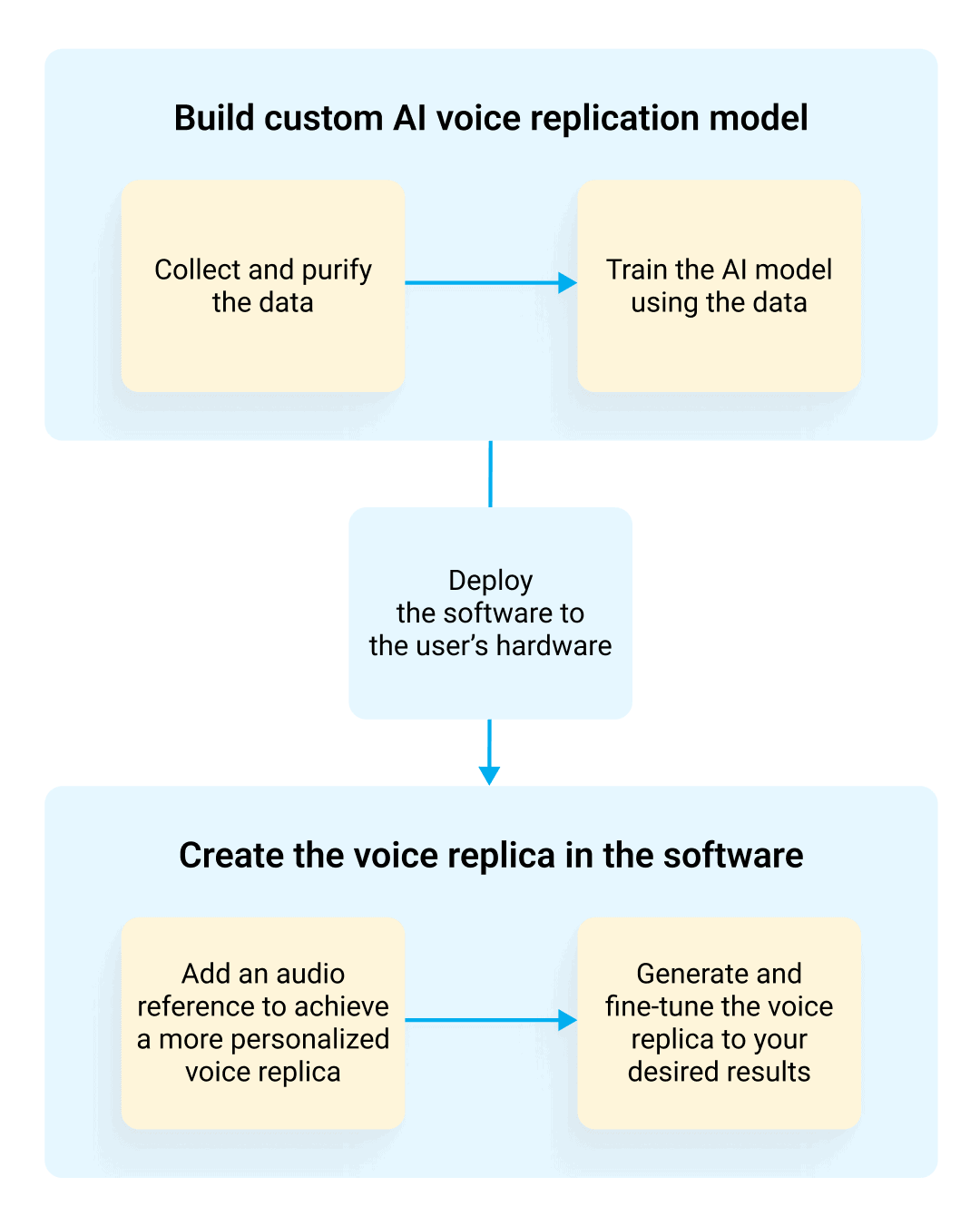

Spf.io collects around 8 to 10 hours of your voice recordings (clear audio with no background noise or music) and purifies the data for training.

Spf.io trains a custom AI model using the data. We can train multiple models so you can select which voice replica you like best. We can also iterate with your feedback until you get the model you need.

The software will then be deployed to your hardware for generating audio.

Upload specific audio reference voice samples to the software. Audio references let you influence the AI to mimic a particular way you would say a sentence. This results in more natural sounding recordings.

Generate and fine-tune the voice replica to your heart’s content by adjusting the text you input, the audio references you select and other parameters.
To run the voice replica software, you’ll need a GPU-equipped computer with at least 12GB of VRAM. This could be an NVIDIA RTX 3070 graphics card for example. This is sufficient for light users who generate speech from small amounts of text at a time.
However, for advanced users who need to generate speech from large volumes of text (e.g., for audiobooks), we recommend using a GPU-equipped computer with at least 24GB of VRAM like an NVIDIA RTX 4090 graphics card. This will be faster and more comfortable to use.
Follow the steps below to use the software:
1️⃣ How to add your voice samples as an audio reference
2️⃣ How to generate the voice replica
How to add your voice samples as an audio reference
Step 1: Go to Audio References in the main menu and click New Audio Reference.

Step 2: Fill out the data to create an audio reference.
- Add the reference name and select the source language.
- You can upload up to 20 audio samples of your voice in MP3 or WAV format (at least 12 seconds each). Ensure you upload clear audio without background noise or music.
- Add a label and description to the audio reference if you’d like to.
- Check the box to ensure you have the legal right and consent to upload and replicate the voice samples.
- Click the Create a Reference button.

You can now use the audio reference when you want to generate your voice replica.
Note: Please upload voice samples demonstrating your desired output style to help the software create an accurate voice replica. For example, you could include samples of you reading technical documentation, delivering a marketing script, or narrating an emotional story.
How to generate the voice replica
Step 1: Click Project > New Project.

Step 2: Add the name and description of the project.

Step 3: Add a playlist to organize your content (useful for audiobook chapters).

Step 4: Select a playlist and then paste the text you want to use to generate the voice replica. Click Process and then the text will automatically split into sentences.

Step 5: Select the audio reference you want to use and set the generate mode as ‘High Quality’ or ‘Fast Mode.’

Step 6: Click Generate for each line to create the voice replica.

You can also click Generate all to generate the audio for all lines at once.
Note:
- How long the generation process will take depends on the number of lines in your text. The estimated processing time for a one-minute audio is around 8 minutes.
- While you’re waiting for the voice replica to be generated, you can create other voice replicas with different texts.
- To track the result of the generated voice replica, you can check the Queue Information on the top right corner.

Step 7: On the playlist view, click the play button to listen to the generated voice replica. You can adjust the result using the Advanced Settings to modify the emotions, stability, length penalty, and repetition penalty or regenerate the voice replica.

Step 8: Once you’ve generated and fine-tuned the voice replica, you can download the audio per line. You can also merge all lines inside the playlist as a single file and download it by clicking merge on the playlist.
If you have several results you generated for each line, you can mark the one you prefer the most (note: if you don’t mark which result you prefer, our system will always pick the first result in the list of generated audio in each line).

After the playlist is merged, you can download it as a single audio file.

The original voice vs. voice replica
Here’s a comparison between Pastor Alistair Begg’s original voice and its voice replica generated using spf.io.
Original voice
Voice replica
And here’s the result where Pastor Begg’s voice replica is used for the Truth For Life Daily Devotions series.
If you’d like to start your custom AI voice replication project, you can request our services at [email protected].