

Delivering clear, professional captions during events is crucial for audience engagement, but caption formatting issues like miscapitalization and positioning can create unnecessary distractions. When one of our customers approached us about reducing these disruptions, we developed a solution: the capitalize captions feature.
This feature enables uppercased captions, reducing distractions caused by miscapitalized words. You can also now set the position of your captions on the screen to ensure they don’t cover important content on your slides.
These features give you more options to ensure your audience stays focused and engaged throughout your event.

Display captions on mobile devices.

Display captions while presenting your slides on the screen.

Display captions on your live stream.
Key Benefits
- If your audience prefers reading captions in uppercase to reduce distractions from miscapitalized words, this lets you meet their preference.
- Captions can be displayed at the top or bottom of the screen so that they do not cover important visual content.
- Change font size, background color, etc according to your preferences.
How it works
How to enable capitalize captions
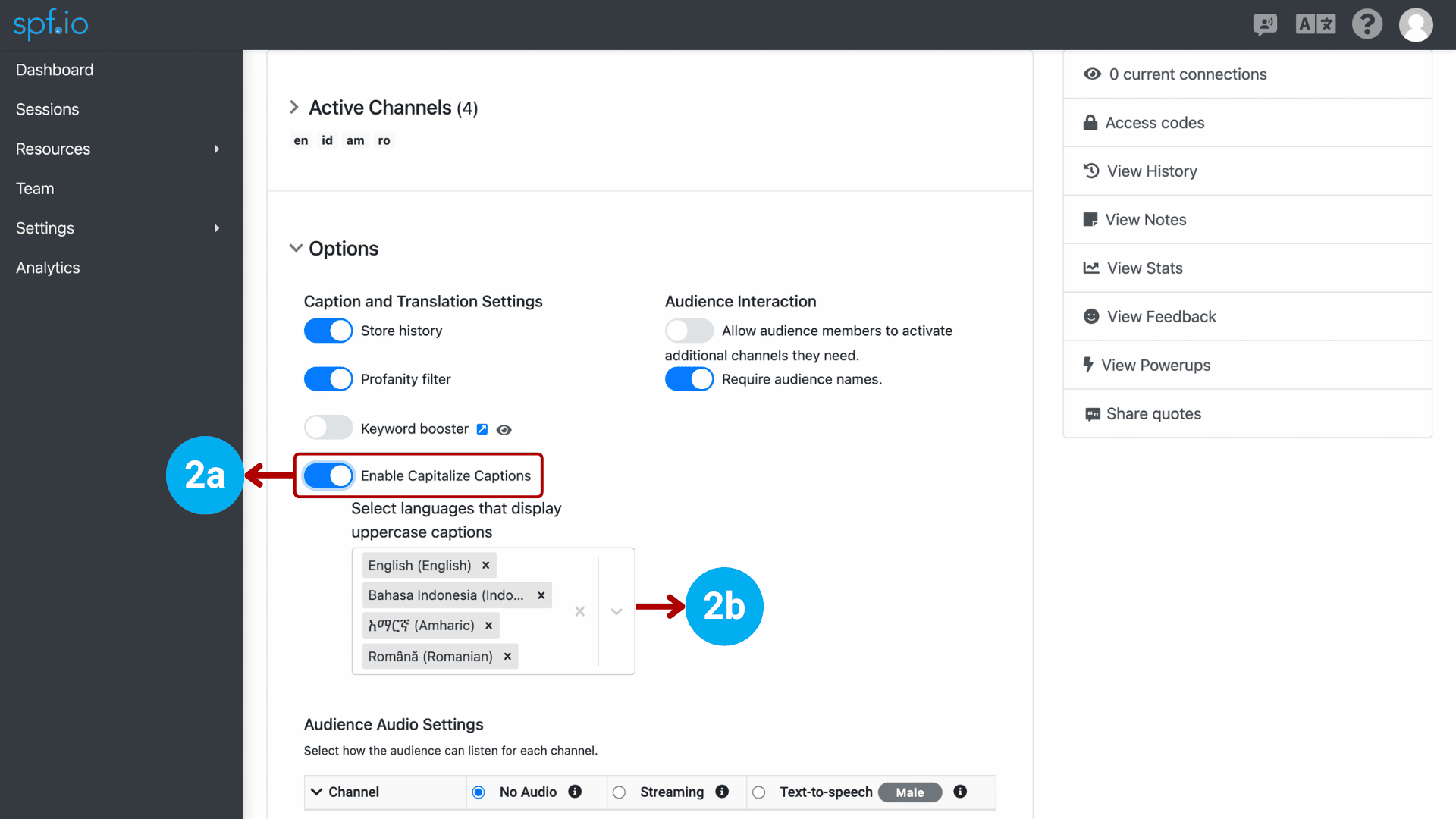
Step 1: Go to your session and select Options.

Step 2: Switch on the Enable Capitalize Captions toggle and select which languages you want to display uppercase captions.
How to set the position of your captions on the screen
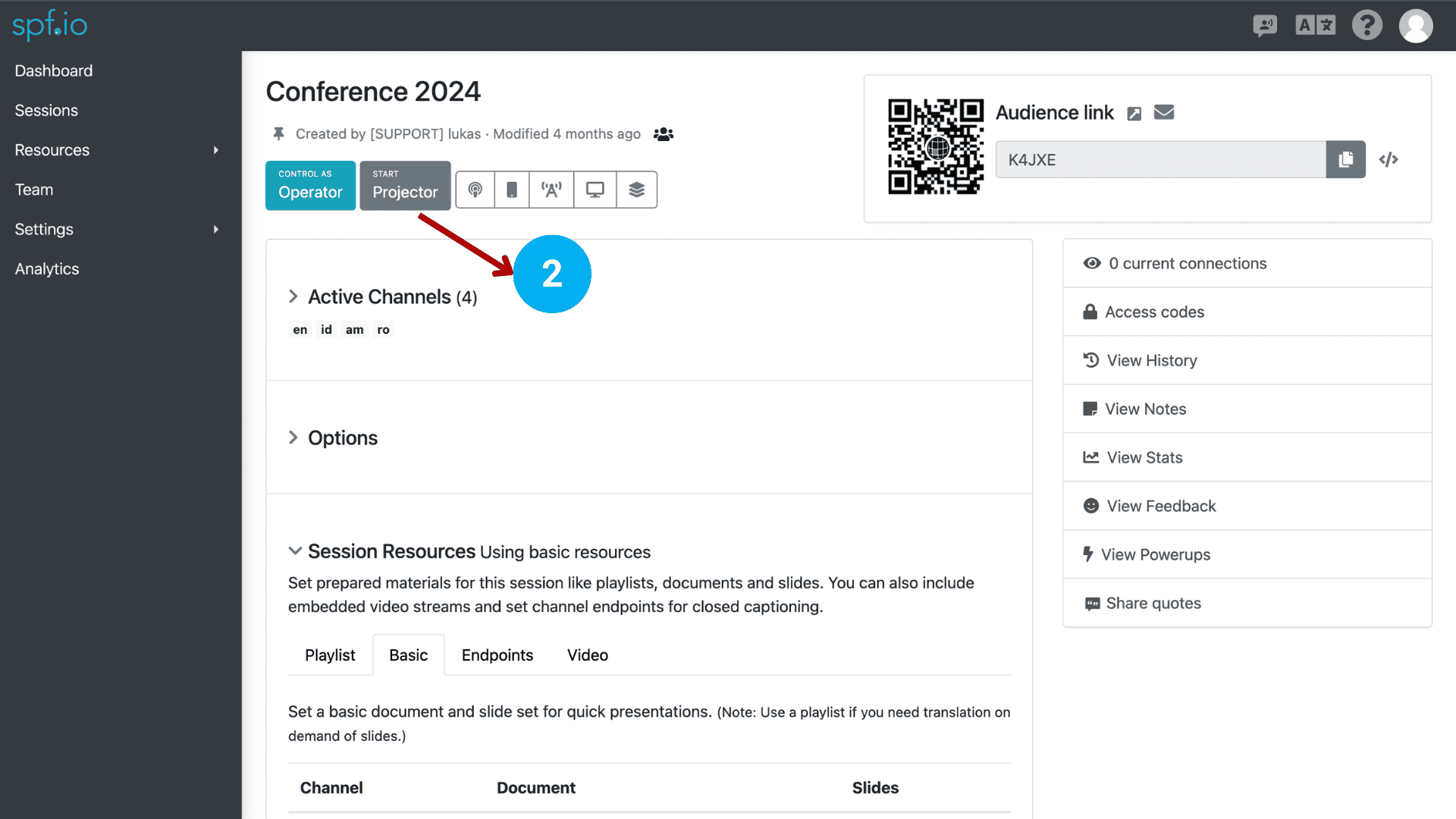
Step 1: Assign your slide file to the session resources under the Basic tab.

Step 2: Click the START Projector button to open the projector controller.
Step 3: In the projector controller, click the Subtitles icon. Then, select whether to show captions/subtitles at the top or bottom of the screen.


Note: If you cannot find the Subtitles icon, click the + button and check the ‘Subtitles’ box so it appears in the Screen menu.
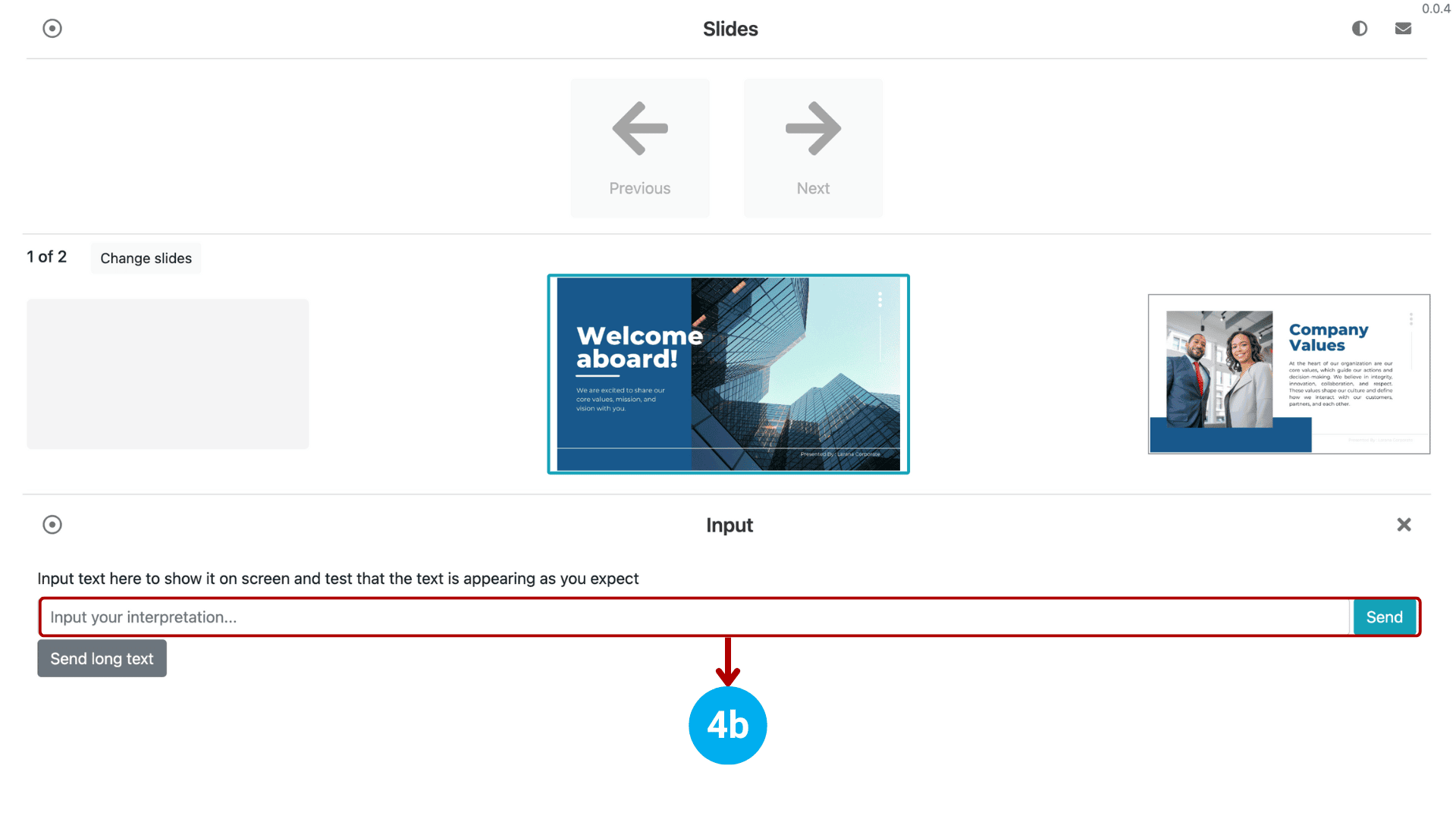
Step 4: Go back to the Screen menu. Click the pencil icon to input text and test whether the caption appears on the screen as you expected.

Here’s an example of uppercase captions displayed at the top and bottom of the screen.
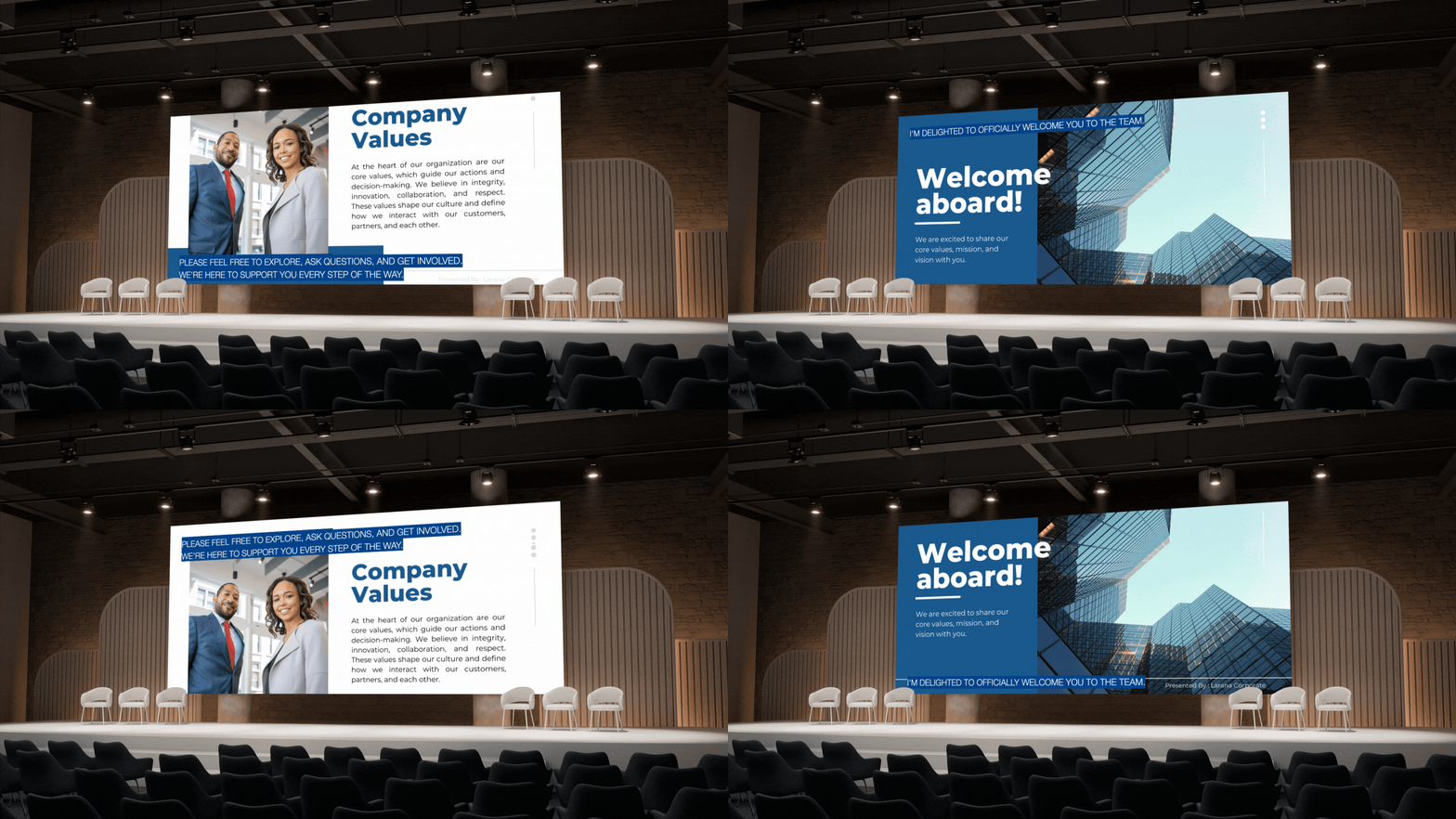
These customizations ensure you deliver professional captions and an enjoyable experience for your audience.