
ProPresenter Integration — Setup & Reference
This guide covers everything you need to connect ProPresenter to spf.io and control translation behavior on a per-slide basis.
Prerequisites
- ProPresenter 7 or higher running on the same machine as your browser
- An active spf.io session with at least one language channel configured
- spf.io account with the ProPresenter integration enabled (see below)
How to integrate ProPresenter with spf.io
Step 1 — Enable the Network API in ProPresenter
- Open ProPresenter and go to Settings → Network
- Toggle Network on
- Note the HTTP Port — the default is 1025
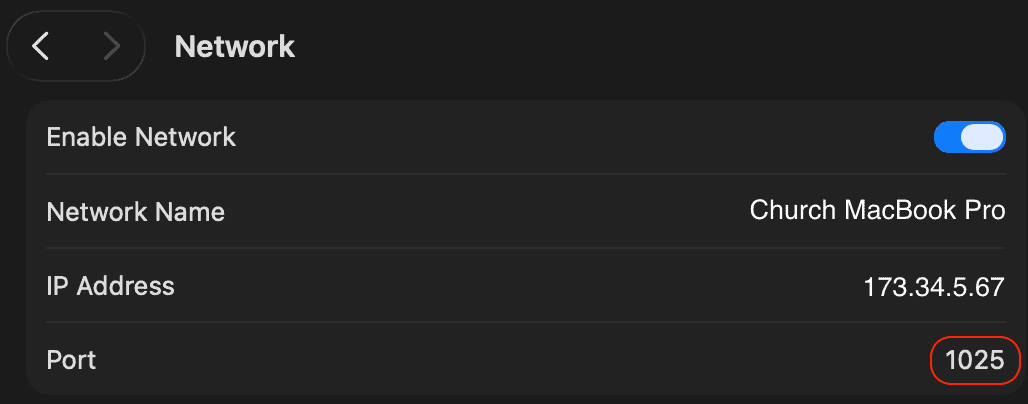
Screenshot: ProPresenter Settings → Network panel, Network toggle on, HTTP Port highlighted
Step 2 — Configure the integration in spf.io
- In spf.io, go to Settings → Integrations → ProPresenter
- Toggle Enable ProPresenter Integration on
- Enter the Port from Step 1 (default 1025)
- Click Test Connection to verify spf.io can reach ProPresenter
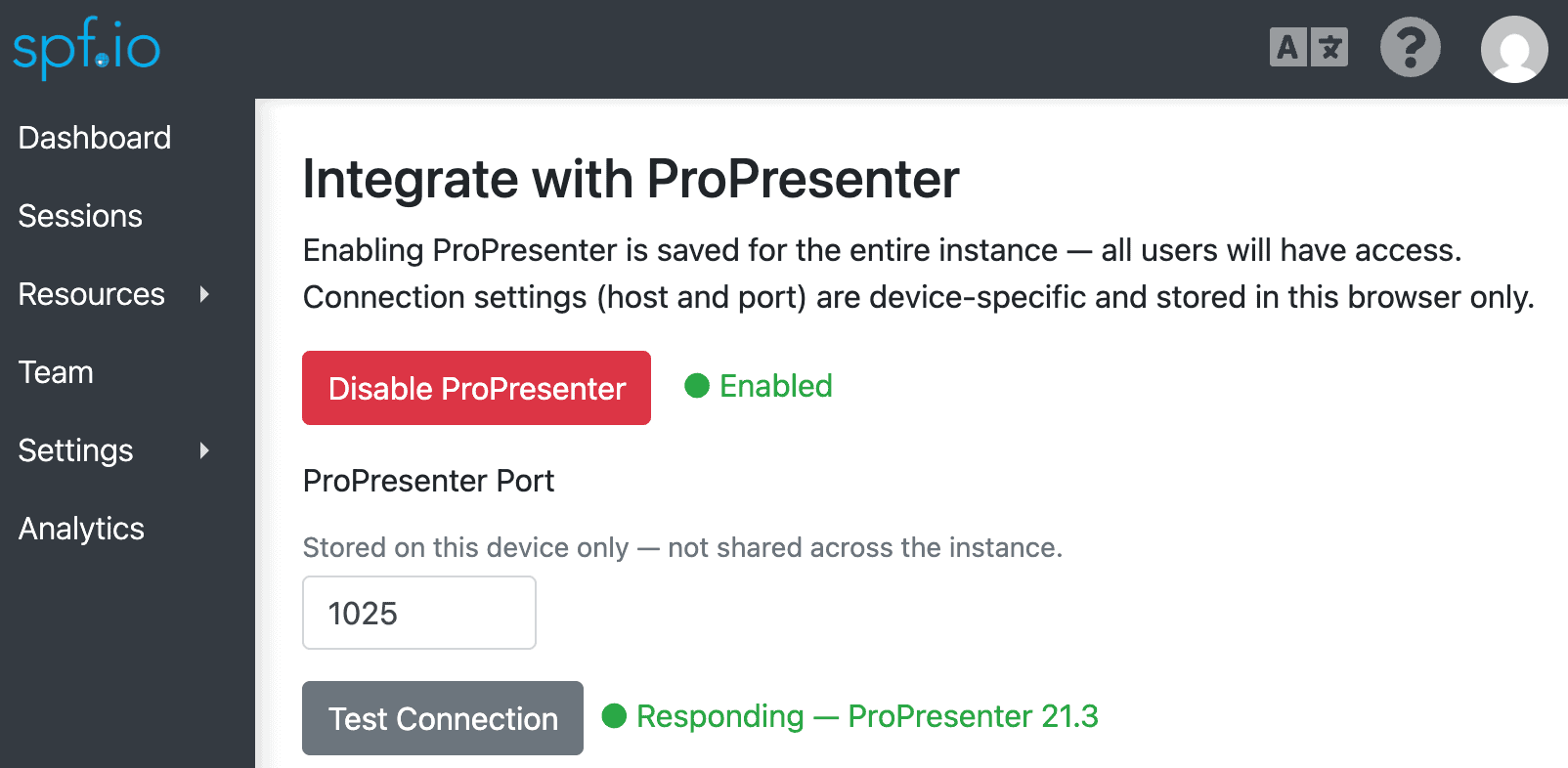
Screenshot: spf.io Settings → Integrations → ProPresenter, toggle on, port field, Test Connection button
Step 3 — Connect in the Slides view
- Open your active spf.io session and go to the Slides view
- In the top-right corner, select ProPresenter from the source options
- Click Connect
- Advance a slide in ProPresenter — the live view should update immediately
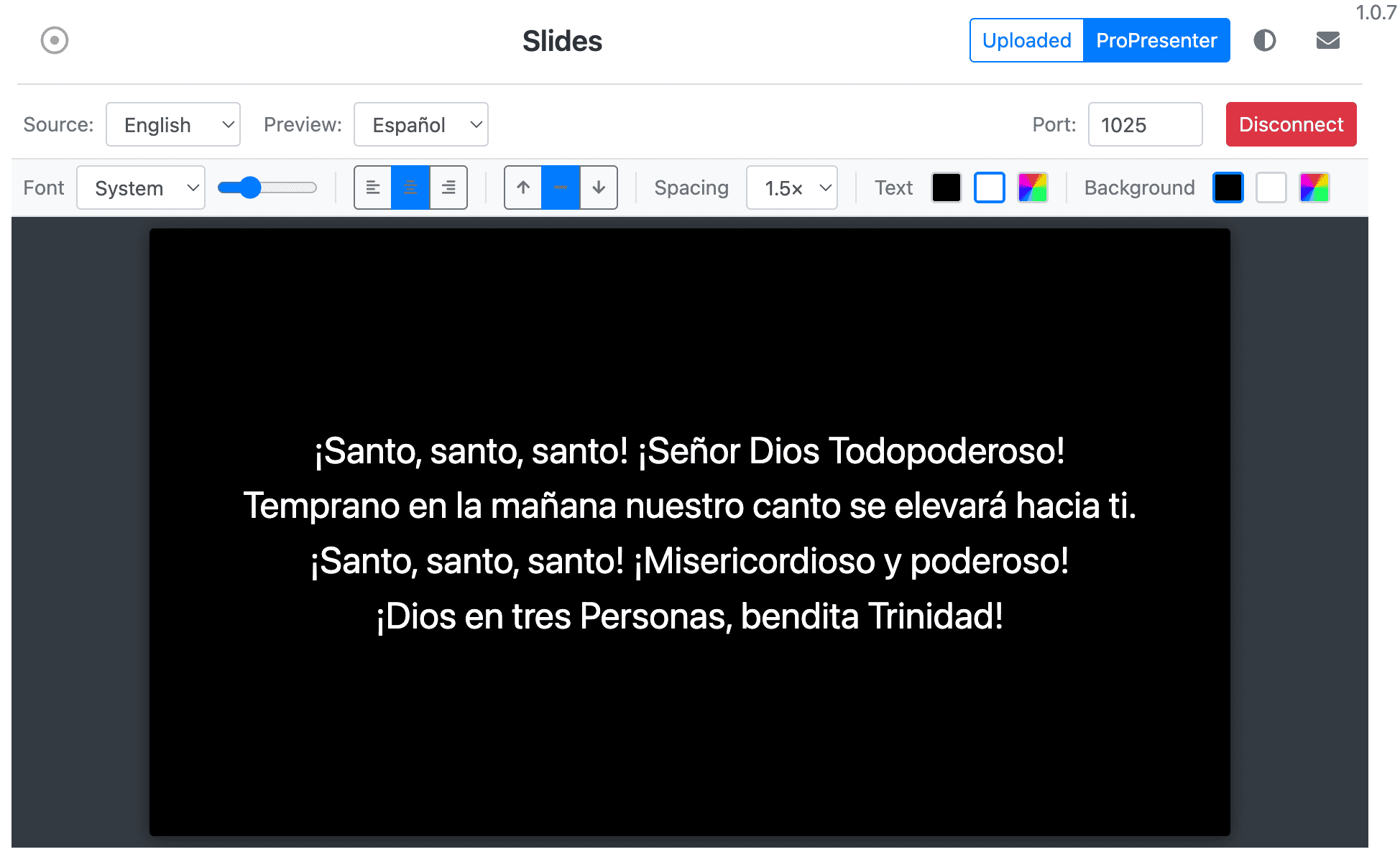
Screenshot: Slides view with ProPresenter selected in top-right dropdown; showing a live ProPresenter slide with translated content
Slide directives
In ProPresenter’s slide Edit window, add tags in the Slide Notes field to alter how spf.io automatically handles that slide.
| Directive Tag | Location | Effect & Usage |
|---|---|---|
[no-translate] |
Slide Notes
|
Disable translation for the entire slide. Sends the slide text through as-is. Also suppresses OCR (Optical Character Recognition) on image slides. |
[lang:code] |
Slide Notes
|
Override the source language for this slide.
Replace code with the language code matching a channel already configured in your event (e.g., use
lang:es if Spanish is one of your channels).
|
[x] |
Start of a Line
(Inside actual slide text)
|
Exclude a single line from translation.
Pro Tip: Make it invisible. You can hide the tag from your audience by selecting the
[x] characters on your slide and changing their text opacity to 0%.
Example: If you have a bilingual slide with Spanish lyrics on top and an English subtitle line underneath, add
[x] to the start of the English line. Only the Spanish text will be sent to the translation engine.
|
Image slides and OCR
When ProPresenter advances to a slide with image media, spf.io automatically runs Optical Character Recognition on the image, extracts any text, and translates it like a normal text slide. Use [no-translate] in ProPresenter Slide Notes to suppress both OCR and translation on a specific image slide.
Troubleshooting
Test Connection fails. Confirm ProPresenter is running, Network is enabled, and the port matches. If you changed the port in ProPresenter, restart ProPresenter before testing.
Slides view doesn’t show ProPresenter as an option. The integration must be enabled in Settings → Integrations → ProPresenter before the option appears in the Slides view.
Slide advances but nothing appears. Check that your session has at least one active language channel configured and that the slide has text content (not just a background image without text).