
Q: How do I share access to the audience view so the audience can get captions and translations on their smartphones?
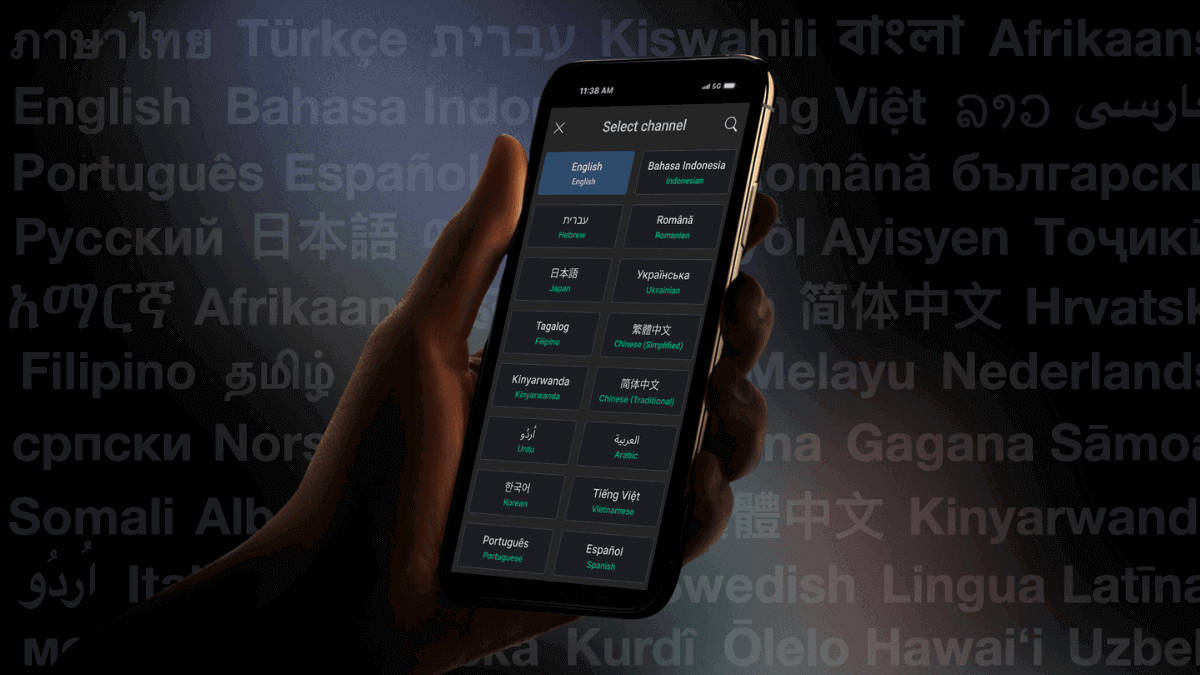
A: Audiences can access event captions and translations by scanning a QR code or visiting a special link on their smartphones. The QR code or link will take them to the spf.io Audience View where they can select their language.
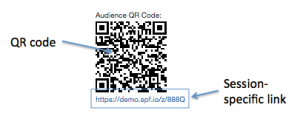
To provide the QR code:
- Click on your session on the Sessions page.
- Locate the QR code image in the session editor (see the top right-hand corner).
- Right-click the image and save it to your computer.
- Print it out for attendees to scan easily (note: they must open a QR code scanner app or camera app on their device to use this functionality).
You can also get a stable QR code that always points to your pinned session so you don’t have to update the QR code in your slides, posters, or bulletins every week. Simply go to the Dashboard, click Sessions, and click the QR code button on the right side of the filter and search bar.

To provide the URL or link:
You can share a session-specific URL or a stable URL that can change which session it leads to.
- For the session-specific URL, follow the same instructions above to locate the QR code. Find the session-specific URL below the QR code. Click here for further information on the session-specific URL.
- For the stable URL, follow the steps below.
- Visit yoururl.spf.io/z, where your URL is replaced with your customized URL.
- The event link should lead to the mobile view of the last created session. If the link doesn’t lead to the session you want, follow the instructions about setting the /z shortcut.
- Share the event link with attendees. Find out how to get a printable poster with the link here.
Download this slide file on how you can share access to the Audience View and how the audience can access it. You can display the slides on the screen during your event.

There are different ways the audience can experience translation based on their preferences. They can read the live captions or subtitles, listen to AI translation through text-to-speech, or listen to an interpreter’s audio stream.
Learn how to enable text-to-speech and set up audio live streaming in your session here.
If the audience finds a powerful quote and wants to share it on social media, they can select the live transcription or translation and click the Share button. They can share the quote as a text or an image, publish it publicly on their feeds, or send it privately to their friends via direct messages. If they want to share it as an image, they can use the default spf.io background or custom background images uploaded to the session.